Settings
The Settings page holds what you can change from the app. Its sections appear below in the order the page shows them.
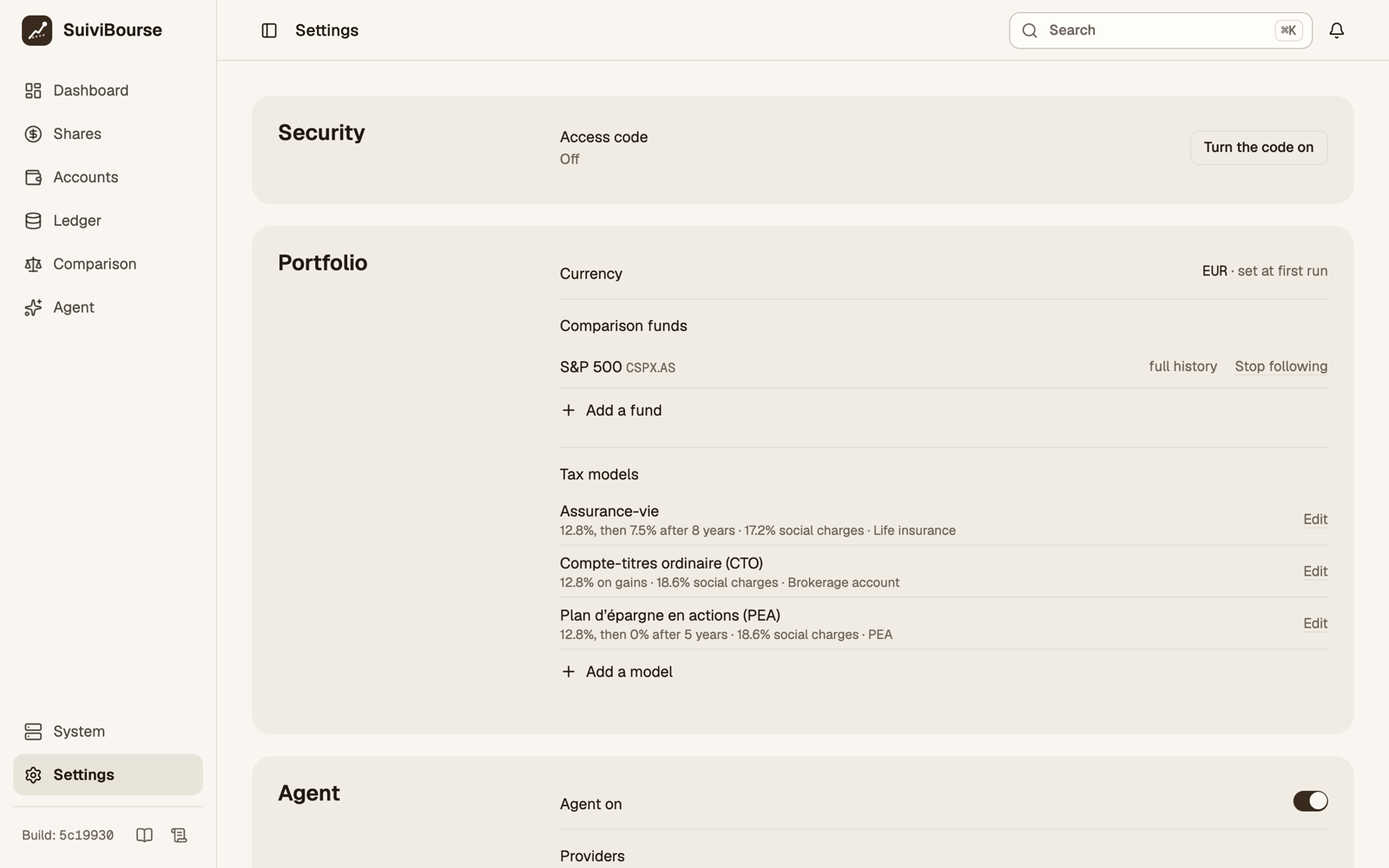
Most rows save as soon as you change them and say ✓ Saved. If a value is refused, the row says Not saved: and the reason. Settings that are fixed when the container starts are environment variables. See Configuration.
Security
This section holds the Access code, the Auto-lock delay and the Access tokens. Secure access covers each of them step by step.
Portfolio
Currency
The base currency is the currency every figure is reported in. You choose it at the first launch. Once it is set, the row shows the code with set at first run and cannot be changed: your amounts are recorded in that currency.
Comparison funds
The index funds the Comparison page can compare you with. Add a fund opens the list of five funds, each with a switch to follow it. Stop following removes a fund from the page. See Comparison.
Tax models
Your taxation models, each with a summary of its rates and the accounts that carry it. Add a model imports a published model or lets you write your own. Edit opens a model. See Your taxation model.
Agent
This section turns the Agent page on, lists the Providers that run the model and sets its Thinking time. Set up the agent explains each row, and Agent explains how to use it.
Notifications
A channel sends you a message outside the app when something needs your attention.
- Click Add a channel.
- Choose the Channel kind: Webhook, ntfy, Apprise or Email.
- Fill in the address. For example, an ntfy Topic address looks like
https://ntfy.sh/my-topic. An email channel also asks for the SMTP server, Port, Username, Password, Sender and STARTTLS. - Under Send, pick at least one kind of message: Late prices, New versions, Errors.
- Click Save.
Test on the channel's row sends a test message. In the channel's sheet, Channel on pauses it and Delete this channel removes it.
| Kind of message | When it is sent |
|---|---|
| Late prices | A security you hold has a market open, but its price has not changed for longer than the Frozen-quote threshold of Advanced. Sent again only after the price recovers and stops again. |
| New versions | A newer release of SuiviBourse is out. The check runs only while Report new versions is on, on the System page. |
| Errors | A background job fails: price updates, history rebuild or performance calculation. At most once every 6 hours per job. |
Display
These rows apply to the browser you are using. Another browser keeps its own choice.
| Row | Choices |
|---|---|
| Appearance | Automatic (follows your system), Light, Dark |
| Language | Français, English |
| Table density | Comfortable, Compact |
| Theme | Says Atelier (the built-in theme) or Custom. Customise opens the theme editor. |
Edit the theme
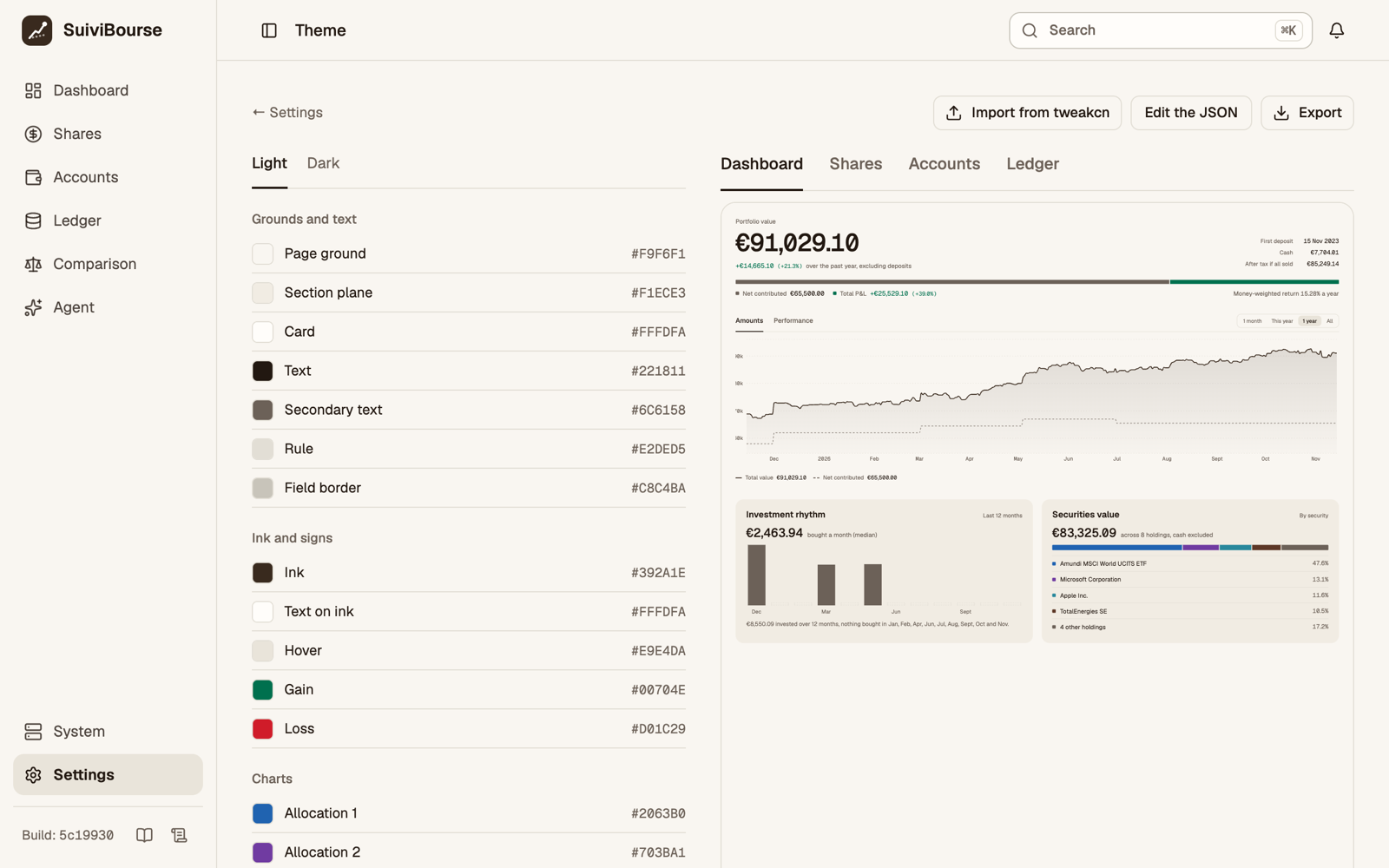
The theme editor, at /settings/theme, changes the colours, shape and fonts of
the app. The theme is saved on the server, so every browser gets it.
- On Display → Theme, click Customise.
- Under Palette to edit, choose Light or Dark.
- Change the colours in Grounds and text, Ink and signs and Charts. A dot marks a changed colour, and Reset on its row brings it back.
- Adjust Shape (Corner radius, Shadows, Letter spacing) and Fonts (Text, Figures and identifiers).
- Check the preview on the right. You can switch the page it shows.
- Click Apply to save.
If you leave with unapplied changes, the app asks: Stay or Discard.
At the top of the editor:
- Import from tweakcn loads a theme from tweakcn.com. Enter its id or the
address of its page, for example
tweakcn.com/themes/…, then click Import. The server contacts tweakcn.com once, on that click. - Edit the JSON opens the theme as JSON. Apply in that window saves it at once.
- Export downloads the current theme as
theme.json.
Restore Atelier, at the bottom of the editor, brings back the built-in theme.
Advanced
These rows control how often the app collects prices and recomputes your figures. Each row shows its default and a Reset link when you changed it.
| Row | What it sets | Default |
|---|---|---|
| Quote frequency | How often prices refresh while markets are open | 2 min |
| Recalculation frequency | How often the history rebuild runs. The performance calculation runs every 2 minutes, whatever this value. | 1 min |
| Pause between requests | The wait between two calls to the price source | 10 sec |
| History depth | Days of prices loaded per request when history is fetched | 365 d |
| Frozen-quote threshold | How long an unchanged price can last before the System page flags it. 0 turns the check off. | 15 min |
How prices are collected explains what these jobs do.
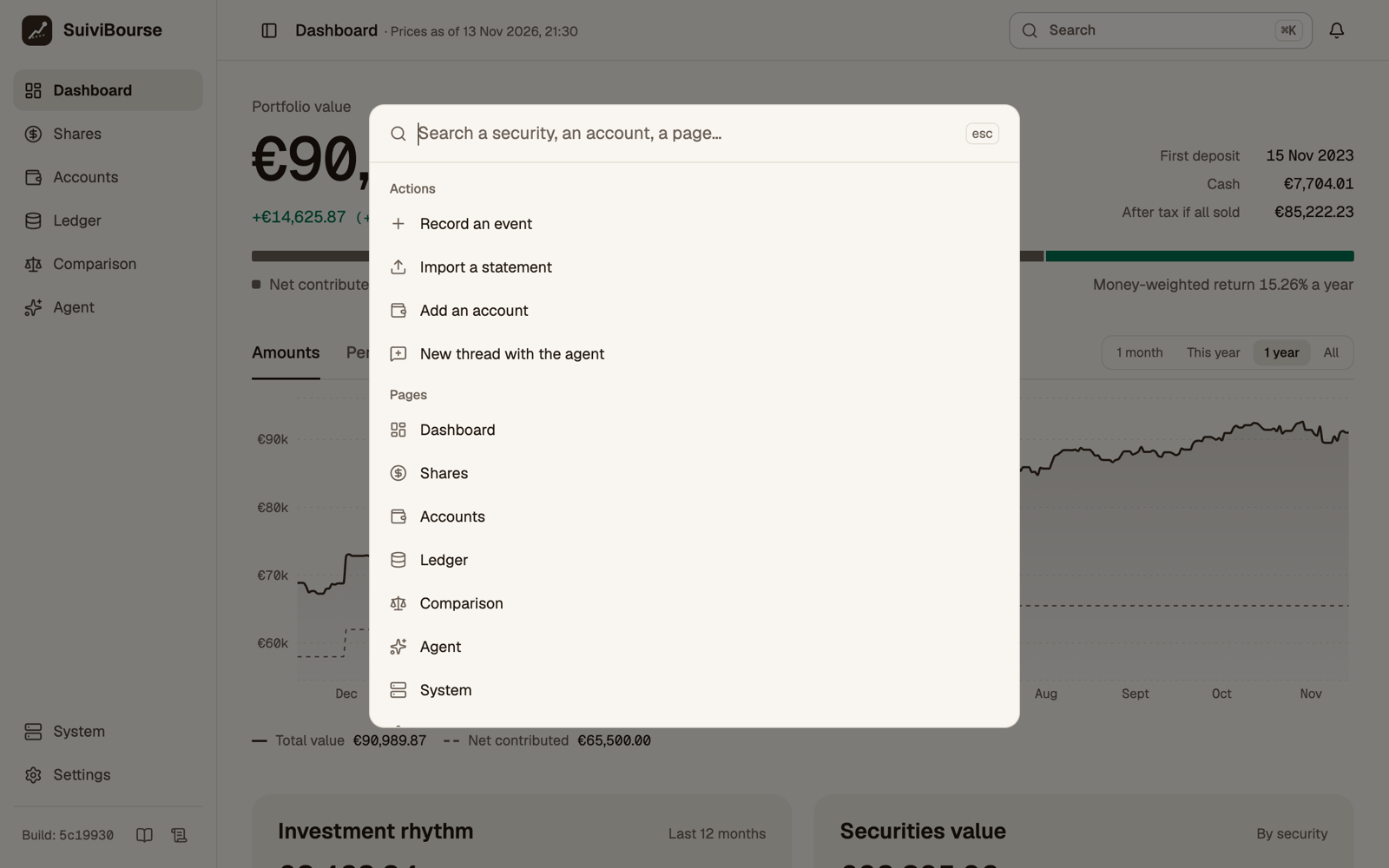
Search with ⌘K
Press ⌘K, or Ctrl+K on Windows and Linux, to open the search palette from any page. Type to reach a security, an account, an event, an agent thread or a page, or to run an action: Record an event, Import a statement, Add an account, New thread with the agent or Lock.