Agent
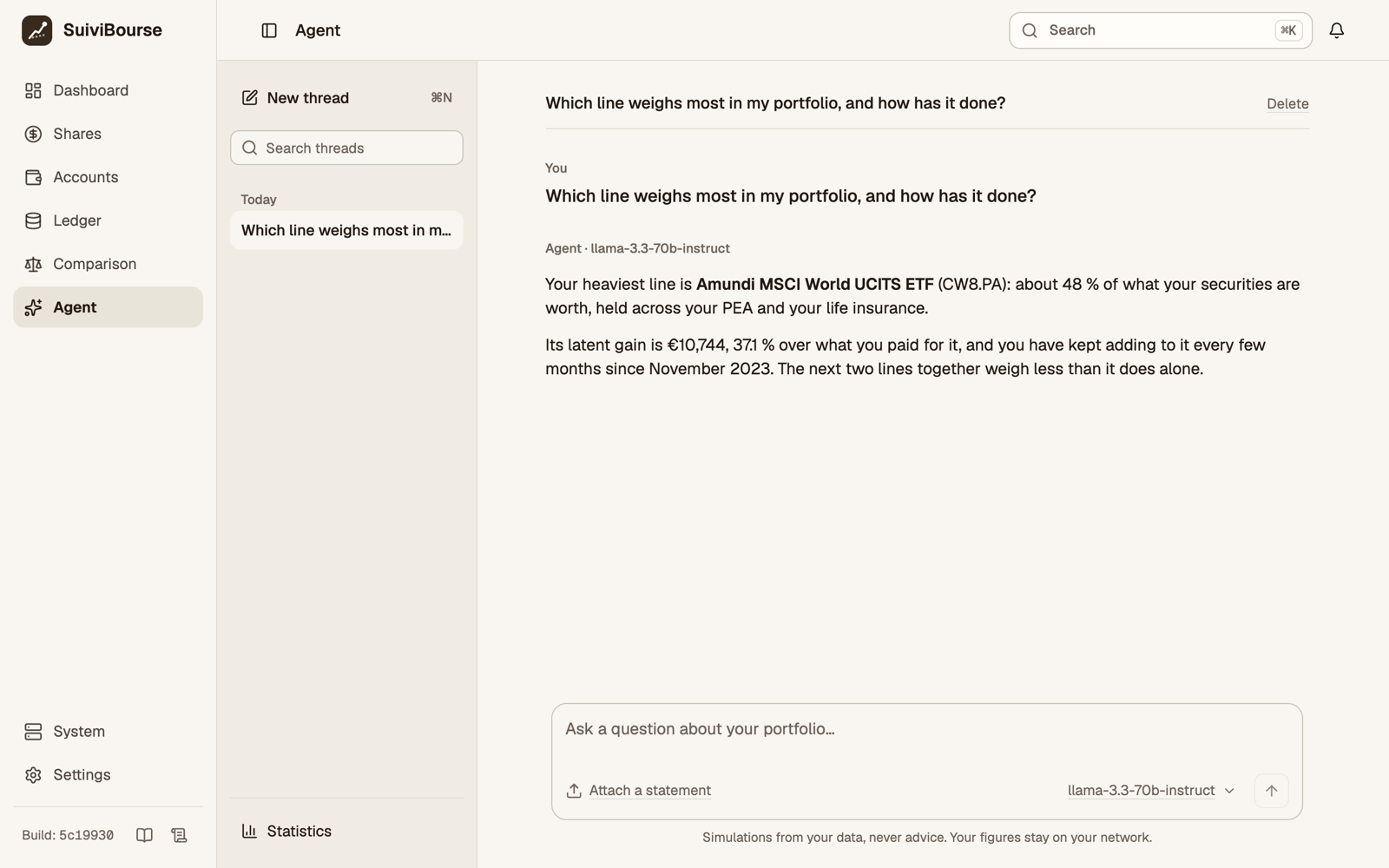
On the Agent page you ask questions about your portfolio in plain language. The agent reads your lines, accounts and ledger, simulates a sale and its tax, and proposes events for your ledger. It does not give advice.
The agent needs a model connected first. See Set up the agent. Until then the page shows Connect a model to ask questions about your portfolio and a Configure button.
Ask a question
- Open Agent in the sidebar.
- Type your question in Ask a question about your portfolio…, or click one of the example questions.
- Press Enter or click Send. Shift+Enter starts a new line.
Click Stop to interrupt the answer, or Retry if it stops on an error.
| You can ask | What the agent does |
|---|---|
| Where does my portfolio stand today? | Reads your totals and lines |
| What are my latest movements? | Reads your ledger |
| Have I invested regularly over the last twelve months? | Reads your investment rhythm |
| If I sell all my ACME on my PEA, how much do I pay and what is left? | Simulates the sale and its tax |
| What would emptying my brokerage account cost today? | Simulates selling the account's lines |
| Am I doing better than my comparison fund? | Reads the Comparison page |
| How has my portfolio moved since January? | Reads your portfolio history |
See which tools it used
Each step of the agent appears as a line in the answer, for example Reading your ledger. or Simulating a sale and its tax. Click a line to see the Call and the Result. A step that fails says The tool failed: and the reason.
Add the events it proposes
When you describe movements, or give it a statement, the agent proposes events. They appear under the answer as a table: date, type, event and amount. A line that is already in your ledger says already in the ledger and is unchecked.
- Check the lines you want to keep.
- Click Add 3 events. The count follows your selection.
When a proposal needs your answers, the button reads Review in the ledger instead. See Review a proposal in the ledger.
Nothing is written before you click. The card then shows one of these states:
| State | Meaning |
|---|---|
| Added on … | The events are in your ledger. |
| Ignored | You clicked Ignore. |
| Expired | Nobody decided within 7 days. |
| The ledger has changed since this proposal | Click Run again to check the same events against your ledger as it is now. |
Review a proposal in the ledger
Review in the ledger opens the Ledger with a window titled What this import would do. It lists The proposed events and asks the questions the proposal leaves open. Nothing is written until you click Import.
| Part of the window | What you decide |
|---|---|
| The accounts | For each account the events name, choose its target in Target for …: one of your accounts, or Add "…" as a new account. The choice applies to this import only. |
| Amounts in another currency | For securities quoted outside your base currency, say whether the amounts are In EUR, already converted or in each security's own currency. The second choice converts at the closing rate of each trade's day. |
| Repeated in the file | Lines that appear more than once. Choose Write just one or write every copy, line by line or with One of each and Write every copy. |
| Already in your ledger | Lines your ledger already holds. They are skipped unless you check Write the lines already in your ledger anyway. |
| The currency | Shown when you have no base currency yet. Use … as the base currency adopts the currency of the events. You cannot change it afterwards. |
Import stays disabled while an answer is missing, and the window says which. Closing the window writes nothing and leaves the proposal waiting.
Turn a broker statement into events
- Under the question box, click Attach a statement.
- In Statement account, choose the account the statement belongs to.
- Paste the statement in Statement text, up to 50 000 characters.
- Click Send.
You can also drop a .txt or .csv file into the question box to fill the
window. The window names the provider and model that will read the statement.
The agent answers with proposed events. A line can carry a mark: taken from the statement, inferred from a gap or estimated price.
If the agent read the statement the wrong way, click Read as an operations statement or Read as a lines statement. Then click Review in the ledger.
The agent reads text only. An image or a PDF is refused with This model does not read images. Paste the text or a CSV.
Your investor profile
During a conversation the agent can propose to remember a fact about you. The card reads Remember for later: and the fact, with Confirm and Ignore.
| Fact | Values |
|---|---|
| Annual income | An amount in your base currency |
| Marginal tax rate | A percentage, 60 % at most |
| Risk tolerance | Cautious, Balanced or Dynamic |
| Project | A name, a target year and an optional amount |
Confirmed facts appear under Your profile, each with Edit and Forget. The agent uses them in later answers. Your income amount is never sent to the model: the agent only knows that you declared one.
Threads
Each conversation is a thread, kept on your server.
- New thread starts a new conversation.
- The list on the left shows your threads by day. Type in Search threads to find one.
- Delete, next to the thread's title, removes the open thread after you confirm.
- The model name in the question box opens the list of models. Pick another one for this thread.
The ⌘K palette also lists your threads.
Usage statistics
Click Statistics in the threads list to see how much the agent has used.
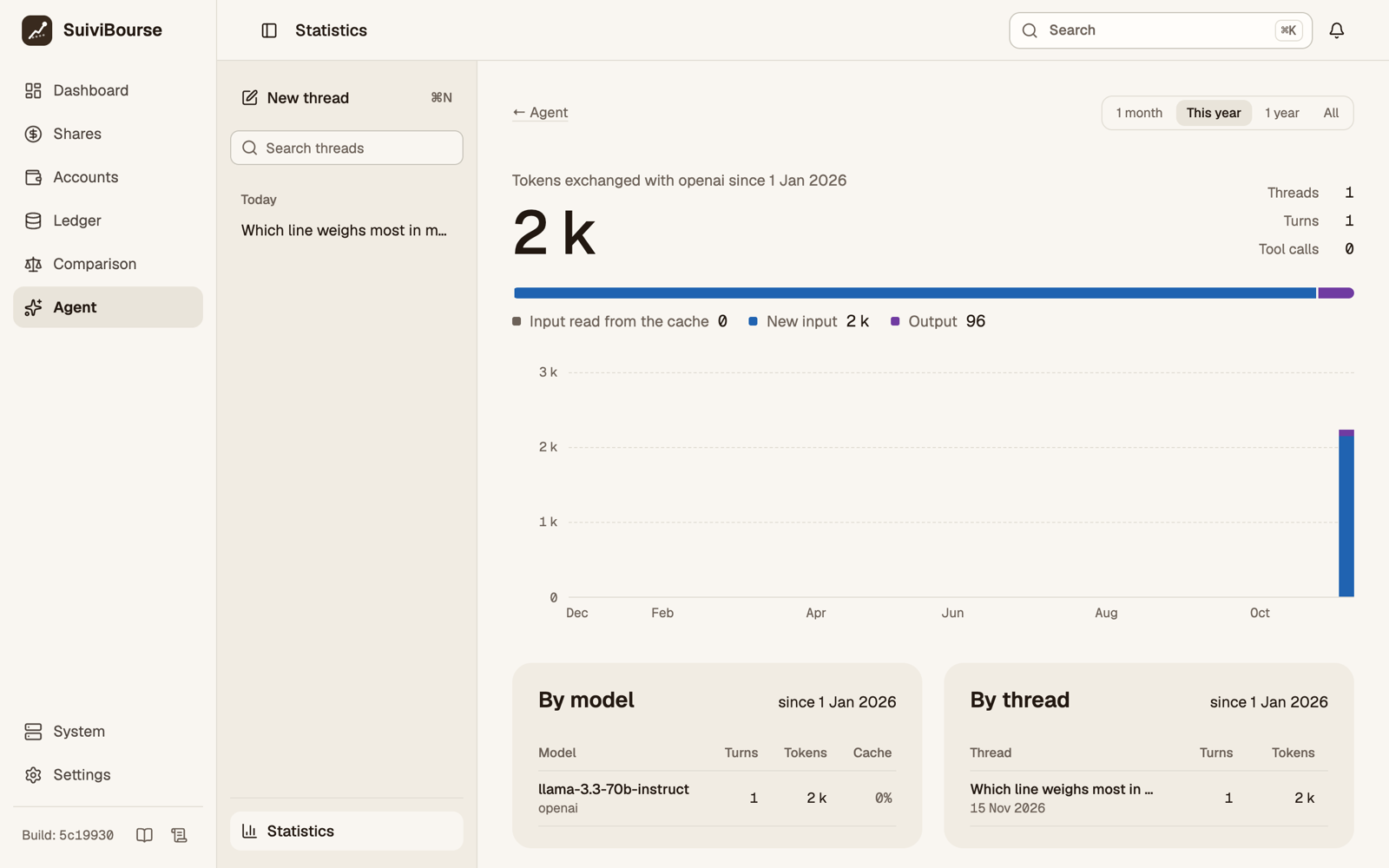
Choose the Period: 1 month, This year, 1 year or All.
| Figure | What it counts |
|---|---|
| Tokens exchanged | All tokens sent and received over the period |
| Threads, Turns, Tool calls | Conversations, answers and tool steps |
| Input read from the cache, New input, Output | The three kinds of tokens |
| By model, By thread | The same counts per model and per thread |
What it cannot do
- It writes nothing by itself. Events and profile facts are proposals that you confirm.
- It does not give advice. It works from your data and simulates.
- It cannot change your settings, accounts or taxation models.
- It reads text only.
When the agent answers, your lines, accounts and ledger are sent to the provider of the model. With a model on your own network, they stay there.