Set up the agent
The built-in agent answers questions about your portfolio on the Agent page. It is off on a new installation. This page shows how to connect it to a model provider and switch it on.
Before you start
- Set an access code first. Anyone who can open the app can use the agent, and their questions are billed to your provider account. See Secure access.
- Have an API key from Anthropic or OpenAI, or the address of an OpenAI-compatible gateway or of an Ollama server.
Supported providers
| Provider | What you give | Where your figures go |
|---|---|---|
| Anthropic | API key | api.anthropic.com |
| OpenAI | API key | api.openai.com |
| OpenAI-compatible | Service address, and an API key if the service asks for one | The host in the address |
| Ollama | Service address (no key) | The host in the address |
For a gateway, the address usually ends in /v1, for example
https://llm.example.com/v1. For Ollama, the form starts with
http://localhost:11434.
The app calls the provider from its own server, so the address must be
reachable from the container. Inside Docker, localhost is the
container itself: use the host's name or IP address instead, for example
http://192.168.1.20:11434.
Add a provider
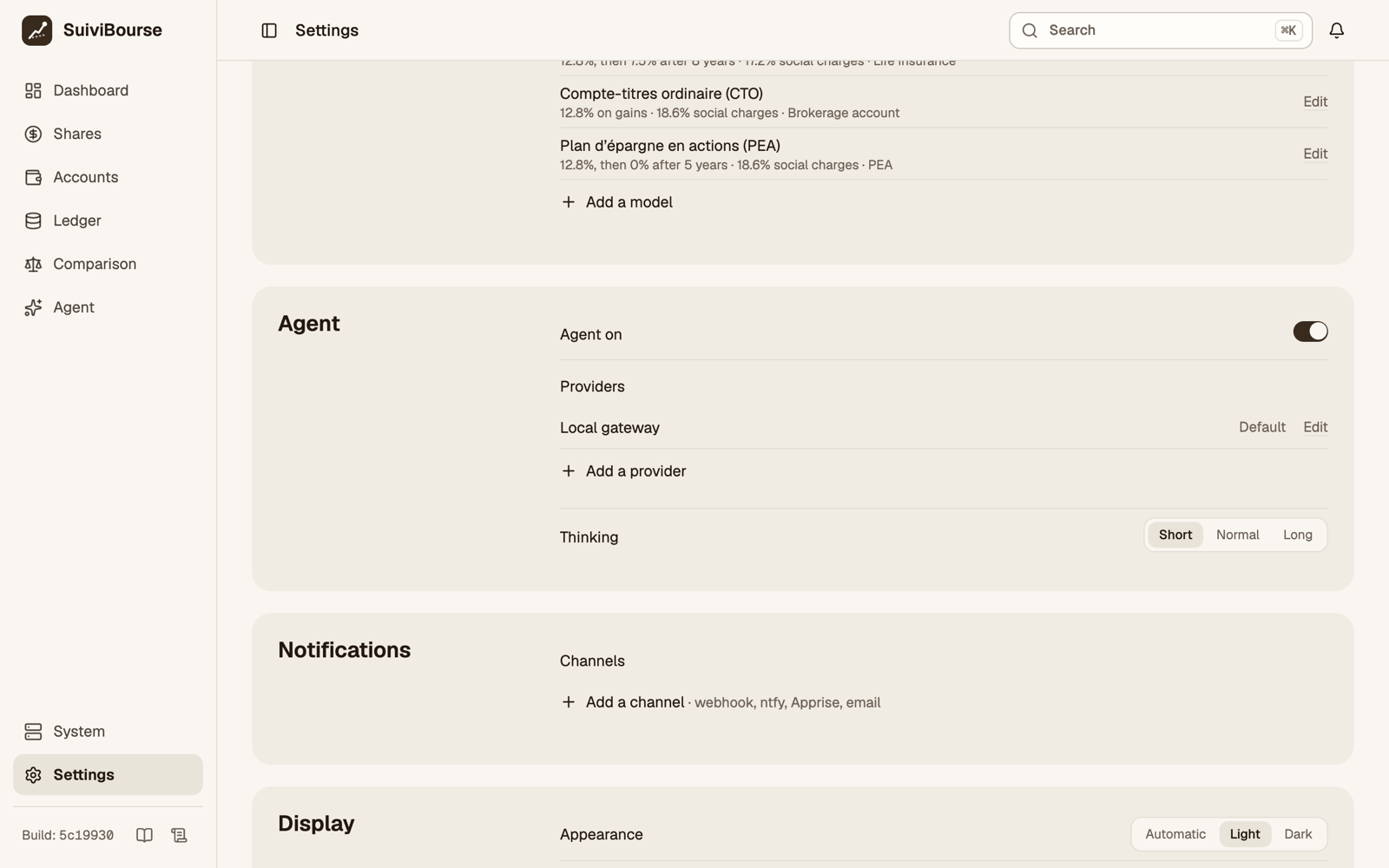
- Open Settings → Agent.
- Press Add a provider.
- Optional: type a Label, for example
Home server. - Choose the provider kind: Anthropic, OpenAI, OpenAI-compatible or Ollama.
- Fill in the API key or the Service address.
- Press Test. The app asks the provider for its models and shows how long it took to answer and how many models it offers.
- Choose a model in Model.
- Press Save.
The first provider you add becomes the default one. The test is optional, but it is the only way to fill the Model list. A provider saved without a model cannot run the agent.
If the test fails, the form says why, for example a refused key, no credit left or a wrong address. It also shows the provider's own message.
Switch the agent on
- In Settings → Agent, turn on Agent on.
The switch is greyed out until you add a provider. The app refuses to switch the agent on while the default provider has no model: edit it, press Test, choose a model and save.
To switch the agent off, turn Agent on off. Your providers and keys stay stored.
Choose how long it thinks
Thinking sets how much the model reasons before it answers: Short (the default), Normal or Long. The change is saved at once.
Short is the cheapest. Longer thinking uses more tokens and takes longer per answer.
Change the model or the provider
- In Settings → Agent, press Edit next to the provider.
- Press Test to load the list of models.
- Choose another Model and press Save.
To keep the stored key, leave API key empty. If you change the provider kind or the address, the app forgets the stored key and the model. If that provider is the default, the agent switches off until you give it a model again.
With several providers, turn on Default provider in the one the agent should use. On the Agent page you can also pick another model for one thread. See Use the agent.
To remove a provider, press Edit, then Delete this provider. The stored key is erased. If you delete the last provider, the agent switches off.
Where the key is stored
The key is stored unencrypted in the app's database, in your /data volume.
Anyone who can copy that volume, or a backup of it, can read the key.
The key never goes back to the browser. The form shows only its last four characters, and error messages mask it the same way. There is no environment variable for it: you set it in Settings only.
What it costs and what leaves the machine
Each question is billed by your provider, on your key, at its rates. The Statistics link on the Agent page counts the tokens exchanged per model and per thread.
When the agent answers, these go to the provider:
- your holdings, accounts and ledger, as the agent's tools read them;
- the profile facts you have confirmed;
- the conversation;
- a broker statement, when you send one to the agent.
Your income amount is never sent. The key is used to sign the request and is never part of the conversation.
The provider form says where your figures go. With Ollama, or a gateway on your own network, it says Everything stays on your network.
Next
- Use the agent: ask questions and review what it proposes.
- Connect your own agent: use Claude Desktop or another MCP client instead.