Accounts
The Accounts page lets you create your accounts and read each one: its value, its gain, where the gain comes from and the tax if you sold today.
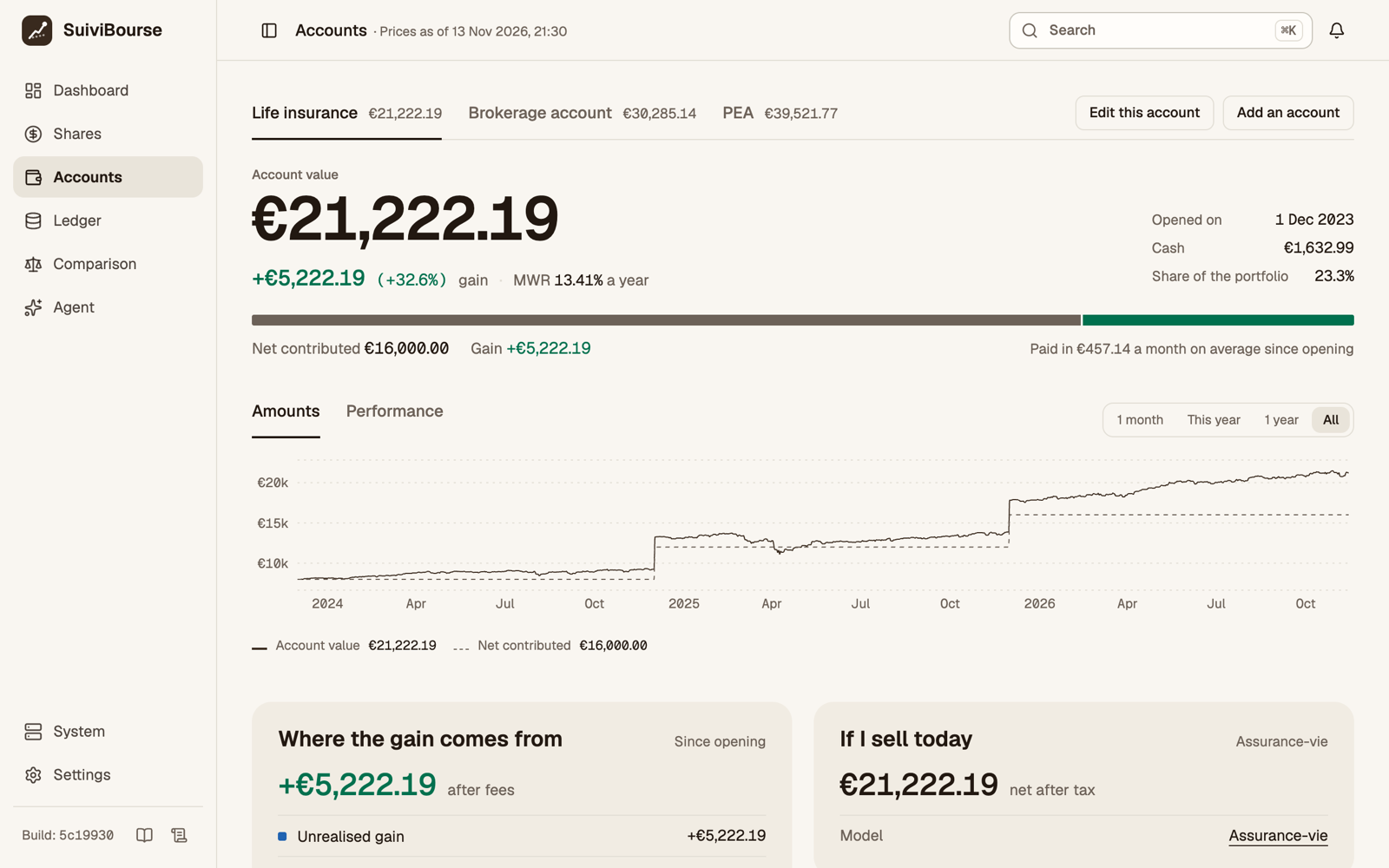
Your accounts are listed across the top, each with its value. Click one to open its detail below. Edit this account and Add an account sit on the same line.
Add an account
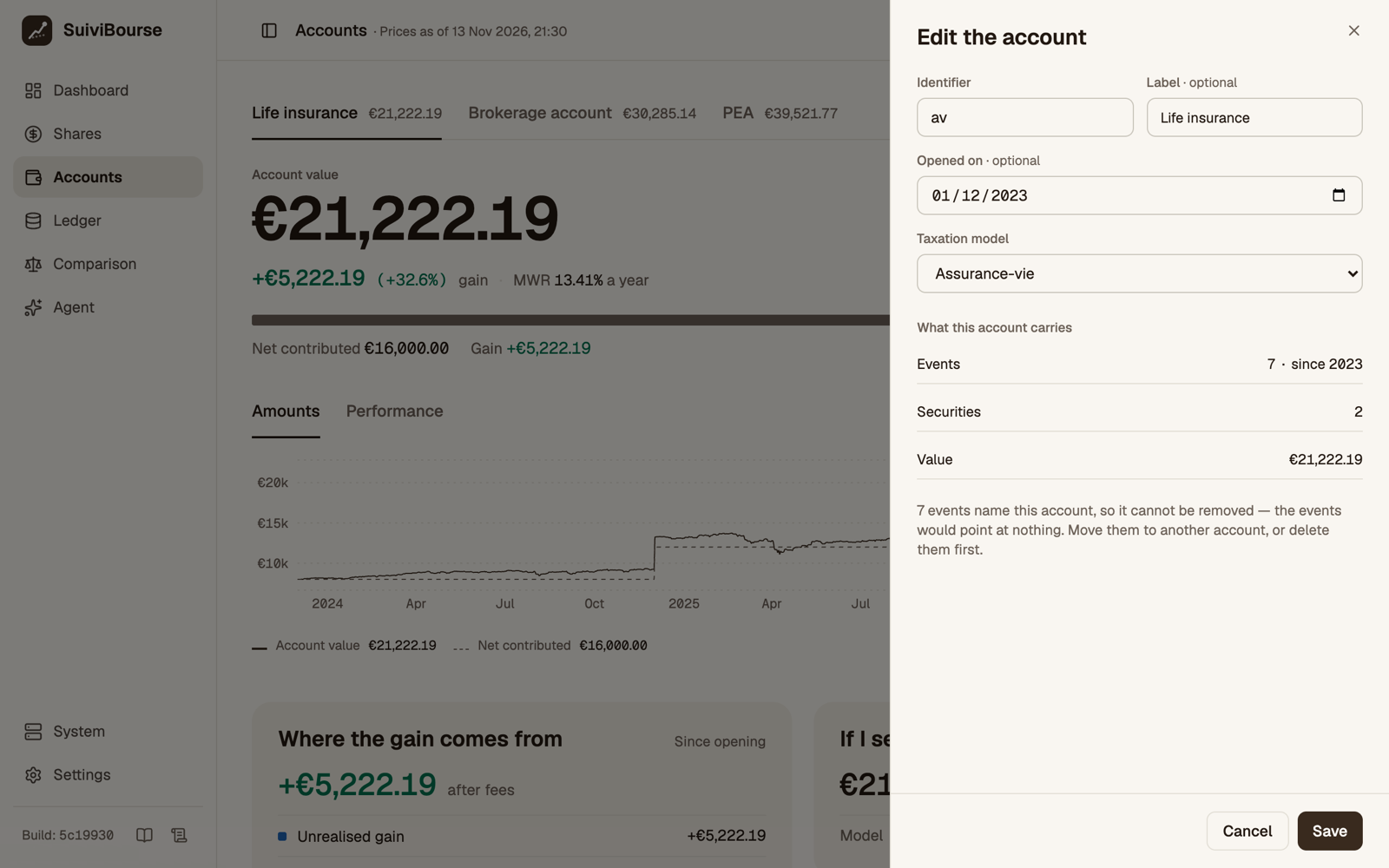
- Click Add an account.
- In Identifier, type a short id such as
broker-a. Use letters, digits,-,_and., with no space. Your import files name the account by this id. - In Label, type the name to show on screen, for example
Broker A(optional). - In Opened on, enter the day the account was opened (optional).
- In Taxation model, pick a model, or leave No model.
- Click Add.
You cannot change the identifier afterwards. If another account already uses it, the panel says so under the field.
If some events name no account yet, the panel offers to assign them to the new account. The box is ticked by default.
Edit an account
- Open the account.
- Click Edit this account.
- Change the Label, Opened on or Taxation model.
- Click Save.
The panel also shows what the account carries: its events, its securities and its value.
Attach a taxation model
A taxation model lets the account show the tax due if you sold today, and feeds After tax if all sold on the Dashboard.
- Open the account.
- Click Edit this account. On an account with no model, Choose a model under If I sell today opens the same panel.
- In Taxation model, pick a model.
- Click Save.
The list shows the models you have imported or written. To add one, see Your taxation model.
Remove an account
- Open the account.
- Click Edit this account.
- Click Remove this account at the bottom of the panel.
- Confirm with Delete the account.
The removal cannot be undone. It is offered only when no event names the account. Otherwise the panel says how many events do: move them to another account or delete them first. See Ledger.
The Unassigned account, which every installation has, cannot be removed. Rename it instead.
Read an account
| Part | What it shows |
|---|---|
| Account value | The value of the account, its gain in money and percent, and its MWR (money-weighted return) a year. |
| Facts on the right | Opened on, Cash and the account's Share of the portfolio. |
| Monthly line | How much you paid in a month on average since opening. |
| Value against what you have paid in | The account's chart. Choose Amounts or Performance, and a period: 1 month, This year, 1 year or All. |
| Where the gain comes from | The gain since opening, split into Unrealised gain, Realised gain, Dividends and Transfer fees. |
| If I sell today | The Taxable gain, the Income tax, the Social levies and what you would keep net after tax, with the Model used. |
| This account's shares | The securities held in the account, with Invested, Value, Gain and Weight. The link under it opens Shares reduced to this account. |
The figures are defined in Read your figures.
A warning under the facts means the opening day looks wrong: it is in the future, or later than the first payment. Correct it with Edit this account.
Events with no account
Events recorded before you declared any account sit in Unassigned. Its page shows Events assigned to no account.
- In Assign them to, choose an account.
- Click Assign these events.