Ledger
The Ledger holds every event of your portfolio: purchases, sales, free shares, dividends, and money paid in or taken out. Every figure in SuiviBourse is computed from these events.
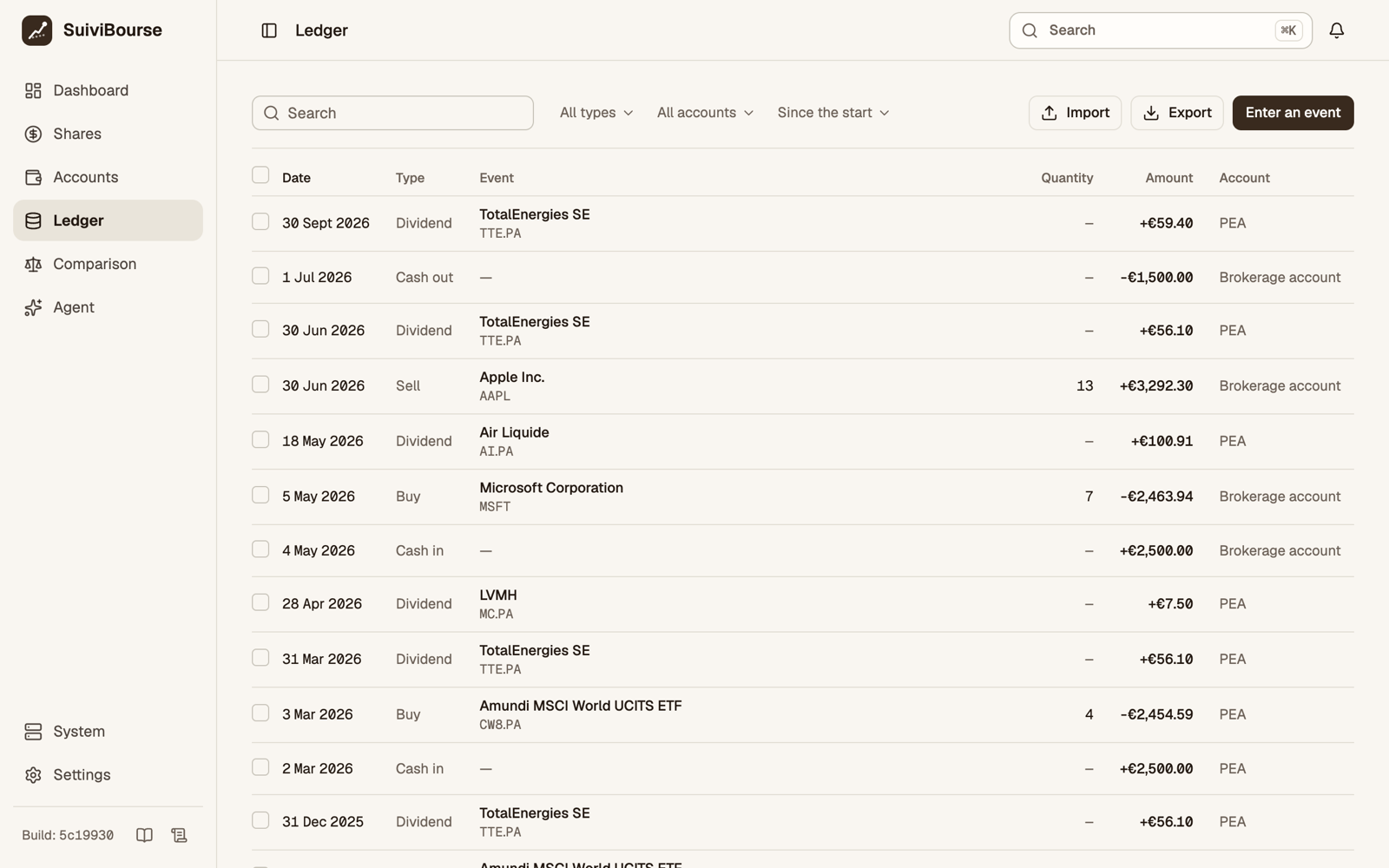
The newest events come first. More rows appear as you scroll. On a phone, the table is a list.
The six kinds of event
| Kind | Code in a file | What it records | Fields |
|---|---|---|---|
| Buy | BUY | Shares you bought. | Security, Quantity, Unit price, Fee |
| Sell | SELL | Shares you sold. | Security, Quantity, Unit price, Fee |
| Free shares | GRANT | Shares you received, such as a bonus share or an employee award. | Security, Quantity, Unit price (optional) |
| Dividend | DIVIDEND | A dividend paid to you. | Security, Amount, Fee |
| Cash in | DEPOSIT | Money you paid into the account. | Amount, Fee |
| Cash out | WITHDRAWAL | Money you took out of the account. | Amount, Fee |
Every event also takes a Date, an Account and an optional Label.
- Enter amounts and prices in your base currency, as positive numbers. The kind of event gives the direction.
- On Free shares, the form suggests the day's closing price as Unit price, and that price counts in your cost. Clear it to record shares that cost you nothing, such as a bonus share.
- On a Dividend, the Amount is the gross sum and the Fee is what was withheld from it. The fee cannot exceed the amount.
- The Fee on Cash in and Cash out is a transfer fee.
Record an event
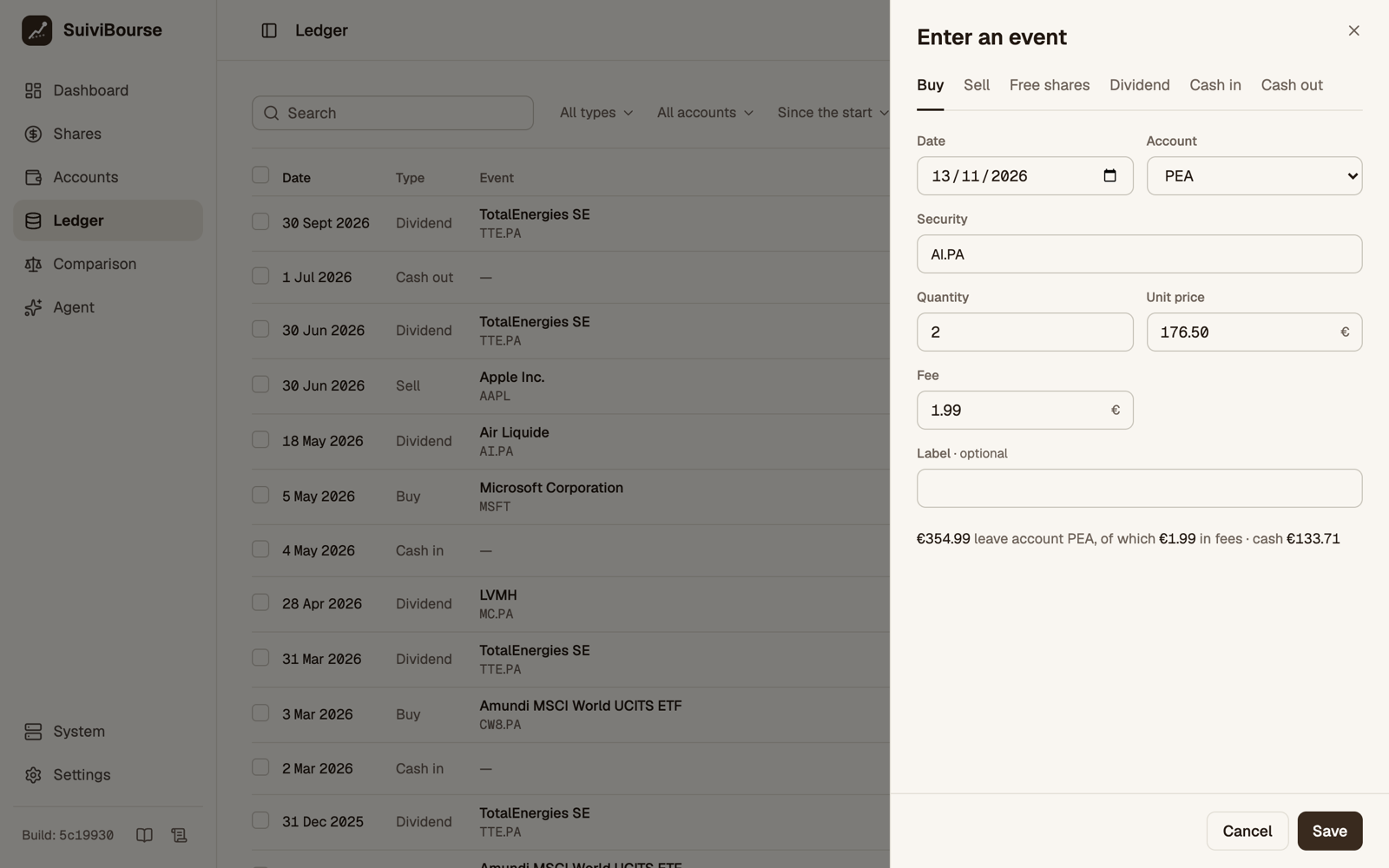
- Click Enter an event.
- Under What happened, pick the kind of event. The form shows only its fields.
- Fill in the Date and choose the Account.
- In Security, type a name or a ticker.
- Pick a line from the list.
- Fill in the other fields.
- Check the cash line at the bottom of the panel.
- Click Save.
The Security list shows the securities from your ledger first, then matches from Yahoo! Finance. If you type a ticker that neither knows, the form says so. Pick a line from the list, or click Record … with no known quote to keep the ticker as typed.
The line at the bottom says how much cash leaves or arrives on the account, and how much of it is fees. On a sale, it also gives the gain or loss.
The form warns you when the date is in the future or before the account's opening day. It refuses a sale of more shares than the account holds on that date.
Find events
- Search: type part of a ticker, a security name or a label.
- Type: show one kind of event. All types removes the filter.
- Account: show one account. It appears when your events name more than one account.
- Period: show one year. Since the start removes the filter.
Remove filters clears them all.
Correct an event
- Click the event.
- Change what is wrong in the Edit event panel.
- Click Save.
The figures are recomputed after each change.
Delete events
To delete one event:
- Click the event.
- Click Delete this event at the bottom of the panel.
- Confirm with Delete.
To delete several events, such as a whole import:
- Filter the ledger down to them, for example by Period and Account.
- Tick their boxes, or tick the box in the heading to select every filtered event.
- Click Delete.
- Confirm the deletion.
A deletion cannot be undone. Export your ledger first if you may need the events again.
A deletion is refused when a later sale depends on the shares it removes. The message names the security.
Export
Click Export and choose a file:
| Entry | What you get |
|---|---|
All your events (.csv) | Every event, in the import format. |
All your events (.xlsx) | The same events in a workbook, one sheet per year. |
| The filtered selection | The events the filters show, in the import format. |
| Accounts and lines | Each account with its cash, positions, average cost and value. |
The event files can be imported again. See Import your events. An export holds your events only: settings, taxation models and tokens are not in it. To keep everything, see Back up and update.
To import a file of events, click Import.